 Final
Final Docker
 keepalived
 sonarqube
 Varnish
 Openstack
yum install python2-winrmyum install ansible
pip3 install winrm -i https://pypi.tuna.tsinghua.edu.cn/simpleansible 远程控制windows服务器
文章目录
ansible 远程控制windows服务器
- ansible服务器安装pywinrm插件windows(ansible连接点)配置升级powershell4.0步骤:1\. 检查powershell版本2\. 下载并安装Microsoft .NET Framework 4.53\. 下载并安装powershell4.0(Windows Management Framework 4.0 )4\. 升级完powershell4.0后检查Windows客户端配置winrm,启用powershell远程管理1\. 查看powershell执行策略2\. 更改powershell执行策略为remotesigned3\. 配置winrm service并启动服务4\. 查看winrm service启动监听状态5\. 修改winrm配置,启用远程连接认证设置防火墙,开放远程管理端口5985配置ansible测试ansible1\. 测试ping探测windows客户主机是否存活2\. 测试文件管理3\. 远程重启windows服务器4\. 测试创建用户(远程在windows客户端上创建用户)5\. Windows服务管理问题:乱码"msg": "Get-AnsibleParam: Parameter 'dest' has an invalid path 'D:\\u0007nsible\\test-mkdir' specified."
ansible服务器安装pywinrm插件
windows(ansible连接点)配置
配置winrm之前检查系统版本,以及powershell版本,如果是Server2008R2版本,则需要升级powershell至4.0版本。Server2012R2以上的版本不需要升级powershell。
升级powershell4.0步骤:
1\. 检查powershell版本
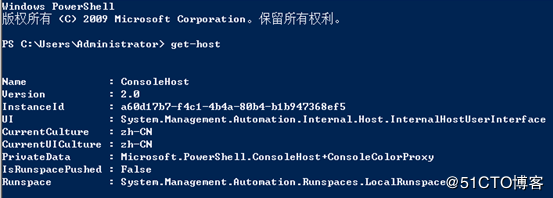
get-host
2\. 下载并安装Microsoft .NET Framework 4.5
下载地址:
https://download.microsoft.com/download/B/A/4/BA4A7E71-2906-4B2D-A0E1-80CF16844F5F/dotNetFx45\\_Full\\_setup.exe
3\. 下载并安装powershell4.0(Windows Management Framework 4.0 )
下载地址:
https://download.microsoft.com/download/3/D/6/3D61D262-8549-4769-A660-230B67E15B25/Windows6.1-KB2819745-x64-MultiPkg.msu
注意: 先安装.NET Framework 4.5 ,然后安装powershell4.0,安装完成之后重启windows服务器4\. 升级完powershell4.0后检查
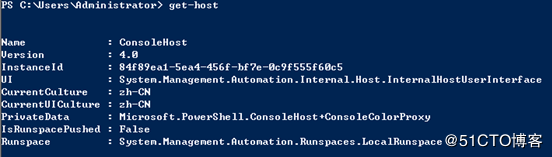
Windows客户端配置winrm,启用powershell远程管理
1\. 查看powershell执行策略
get-executionpolicy
2\. 更改powershell执行策略为remotesigned
set-executionpolicy remotesigned

3\. 配置winrm service并启动服务
winrm quickconfig

4\. 查看winrm service启动监听状态
winrm enumerate winrm/config/listener
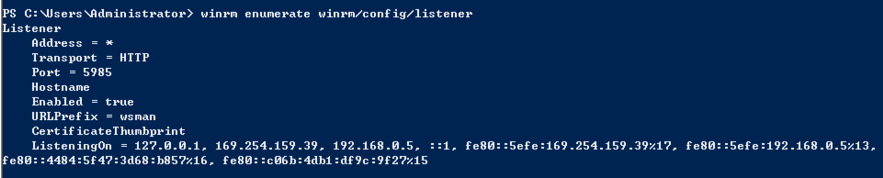
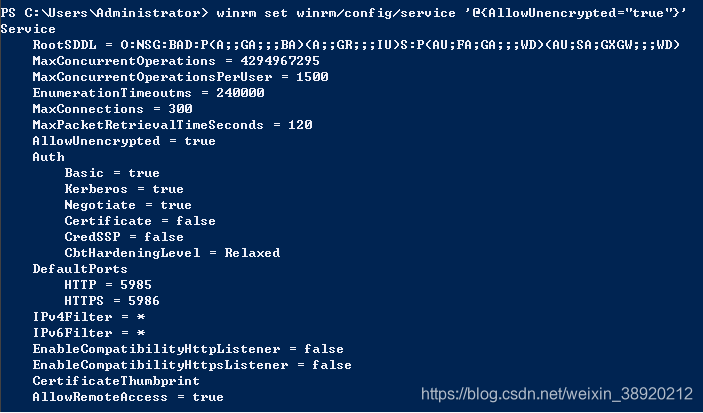
5\. 修改winrm配置,启用远程连接认证
winrm set winrm/config/service/auth ‘@{Basic=“true”}’
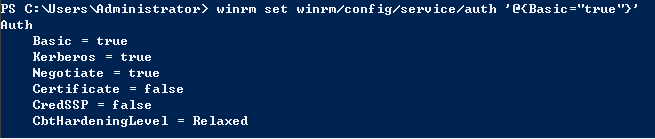
winrm set winrm/config/service ‘@{AllowUnencrypted=“true”}’
设置防火墙,开放远程管理端口5985

配置ansible
vim /etc/ansible/hosts 添加如下连接配置
测试ansible
目标路径不能含关键词ansible,否则提示无效路径,源使用反斜杠结果将递归传输目录下所有文件,源不一反斜杠结尾将整个目录传输到目标目录下。远程执行命令分为远程执行windows 原生自有命令通过raw 模块,如:“ipconfig " 远程执行ansible的win\_command模块也可以执行命令,即ansible的扩展命令如"whoami”
1\. 测试ping探测windows客户主机是否存活
ansible t-windows -m win\_ping ansible t-windows -m raw -a “ipconfig”
2\. 测试文件管理
测试在windows主机执行远程创建目录
ansible t-windows -m win\_file -a ‘dest=D:\\test-mkdir2 state=directory’ ansible t-windows -m raw -a “md D:\\ansible\\test-mkdir”
测试将ansible主机上的/etc/hosts文件同步到windows主机的指定目录下
ansible t-windows -m win\_copy -a ‘src=/etc/hosts dest=D:\\t-ansible\\hosts.txt’
删除文件
ansible t-windows -m win\_file -a ‘dest=D:\\t-ansible\\wxd.txt state=absent’
移动文件
移动文件目标端也需要制定到文件,而不能只制定到所在目录位置 ansible windows -m raw -a “cmd /c ‘move /y D:\\Ansible\\product\\DBFPlus.exe D:\\Ansible\\back\\DBFPlus.exe’”
删除目录
ansible t-windows -m win\_file -a ‘dest=D:\\ansible\\test-mkdir state=absent’ ansible t-windows -m win\_shell -a ‘ipconfig’ ansible t-windows -m raw -a “ipconfig”
结束进程
ansible t-windows -m raw -a “taskkill /F /IM snmp.exe /T”
将.zip解压到远程Windows主机,远程主机上必须存在需要解压的源文件
ansible windows -m win\_unzip -a"creates=no src=D:\\Tomcat8620\\webapps\\PayChannels-8630.zip dest=D:\\Tomcat8620\\webapps"
解压到D盘
ansible windows -m win\_unzip -a"creates=no src=D:\\SupplierPay.zip dest=D:"
重启node.js(.bat命令)
ansible windows -m win\_command -a “chdir=D:\\SupplierPay .\\http\_restart.bat”
3\. 远程重启windows服务器
ansible t-windows -m win\_reboot ansible t-windows -m win\_shell -a ‘shutdown -r -t 0’
4\. 测试创建用户(远程在windows客户端上创建用户)
ansible t-windows -m win\_user -a “name=testuser1 passwd=123456”
5\. Windows服务管理
Ansible命令格式:
ansible \[远程主机IP地址\] -m win\_shell -a “net stop|start 服务名”
问题:乱码

“msg”: “Get-AnsibleParam: Parameter ‘dest’ has an invalid path ‘D:\\u0007nsible\\test-mkdir’ specified.”

处理办法:cp /usr/lib/python2.7/site-packages/winrm/protocol.py{,.20190509bak} sed -i “s#tdout\_buffer.append(stdout)#tdout\_buffer.append(stdout.decode(‘gbk’).encode(‘utf-8’))#g” /usr/lib/python2.7/site-packages/winrm/protocol.py sed -i “s#stderr\_buffer.append(stderr)#stderr\_buffer.append(stderr.decode(‘gbk’).encode(‘utf-8’))#g” /usr/lib/python2.7/site-packages/winrm/protocol.py

Loading...